Chapter 7. Styling and Theming
A theme is a collection of designs used to style every output format of a book. For example, a single theme would include designs for a PDF, an EPUB (the format for the iPad, Nook, etc.), a MOBI (the format for the Kindle), and an HTML website. Each of these designs would have a consistent look and feel, but with slight modifications to optimize the design for the output format. (Read more about styling each format in the following sections.)
All of the Atlas output formats (PDF, EPUB, MOBI, and HTML) are powered by CSS, the standard styling language for the Web. You can write an entirely new theme using CSS, that can be used for multiple projects, by multiple people, or you can just add CSS customizations for your specific project.
Note
This documentation is not a comprehensive guide on how to write CSS, but rather how to set up CSS files to work with Atlas. There are lots of resources online to get you started with learning CSS, and of course O’Reilly has many books on the subject.
Themes
Atlas uses themes to style projects. Each theme is built with CSS and split into 4 pieces, for each of the different output formats: PDF, EPUB, MOBI, and HTML. Atlas has two default themes built in: Trade and Technical. Feel free to use these themes as examples when creating your new design.
Creating a New Theme
Every new theme should include the following:
- CSS to style the ebook and print PDFs
- CSS to style the EPUB
- CSS to style the MOBI (Kindle file format)
- CSS to style an HTML website
- An HTML file to add any extra header information or layout elements to the HTML website (optional)
- Downloadable sample files for each format (optional)
Every theme should live in its own Atlas repository, and you can create this theme repository the same way you create a new project. Click the “New Project” button on the Projects page, give your repository a name, and then in the Templates section, click “Advanced” and choose “Theme”. This will pre-populate your theme repository with all the necessary folders, and blank CSS files for each format.
Note
You can also create a public theme on GitHub for use in Atlas.
Atlas expects themes to use a specific file structure, so if you aren’t creating the theme via Atlas (as described above), then you’ll need to make sure to set your theme up accordingly, as shown in the figure below.
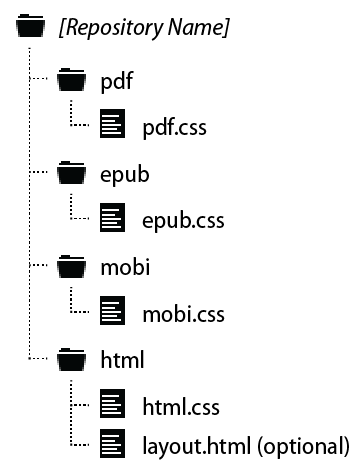
Figure 7-1. The file structure for Atlas themes.
Styling for PDF Output
Atlas combines CSS with PDF processing software to create PDFs suitable for digital reading or professional printed books.
Note
The specific PDF processing software we use is called Antenna House--you can read the documentation about Antenna House here.
Creating a PDF with CSS relies on the Paged Media module. For a primer on writing CSS for PDFs, read “Building Books with CSS 3” on A List Apart, or watch the presentation here.
Styling for EPUB Output (iPad, Nook, etc.)
Right now, the EPUB format is largely targetted at continuous, linear reading--creating more intricately-laid out files is fairly difficult, and getting these files to work on all the different eReading devices is even harder. There are a wide range of devices used to display EPUB files--the iPad, Sony Reader, and Nook, to name a few--and each of these devices offers a different level of support for CSS properties and selectors. Because of this, we advise you not to get too complex when styling for EPUB output. Here are a few CSS tips to get your EPUB files to display correctly, on all devices:
- Keep all text in a single column
- Don’t rely on floats or absolute positioning
- Page margins are off-limits on most devices
- Not all devices render background colors or borders
- Not all devices support less-common text styles (like text-transform)
It’s a good idea to test your EPUB styles on all devices that you think your readers might use, if you can. The easiest way to test is simply to create an EPUB file using your CSS, and see how that file looks on each device.
Styling for MOBI Output (Kindle)
Designing for Kindle is very similar to designing for EPUB: most new Kindle devices can render CSS and HTML quite well--on the same level as EPUB readers. This means that you can generally use the same CSS styles for both your MOBI and EPUB formats.
However, there are still a lot of older Kindle devices in use in the world, like the Kindle Keyboard. These devices have much more limited support for CSS styles, and so it’s generally a good idea to add an extra section of basic fallback styles for these devices, inside a media query, as shown in the following example.
 @media amzn-mobi {

  h1 {
    font-family: serif;
    font-size: 200%;
  }

  h2 {
    font-family: serif;
    font-size: 150%;
  }

  h3 {
    font-family: serif;
    font-size: 125%;
  }

  h4 {
    font-family: serif;
    font-size: 120%;
  }
}
Note
If you don’t want to add extra fallback styles for older Kindle devices, don’t worry--we’ll add some default styles for you if we don’t see the media query in your mobi.css file.
Styling for HTML Output
Atlas comes with an option to export your project as a fully-functional website that you can upload to the server of your choice. When you build the project, you’ll receive a zip file of the project files, CSS, images, and any custom JavaScripts or other assets you’ve chosen to include, as discussed in “Including Custom JavaScripts”.
Note
To learn more about the different build options for exporting your project as a website, read Chapter 6
Writing CSS for HTML output is fairly straightforward--just style things as you would for the Web. We encourage you to consider including navigation elements, a header, and other standard website features to your HTML theme, so that the end result is a fully-functional, beautiful website.
The HTML layout file
In order to make a functional website, each file that you create in Atlas gets wrapped in layout file, that adds header information, links to JavaScripts and CSS files, and standard HTML wrapper tags. All Atlas projects will use a default layout.html file, but you can also create a custom layout file for your theme, for example if you want to add a top navigation bar, or extra navigation links before or after the book content.
If you choose to create your own layout file, simply create a file called layout.html, and save it in the html folder in your theme repo alongside your html.css file. Your layout.html file must include some standard elements in order for it to work correctly with Atlas, but you can add any extra stuff in addition to those required elements.
Note
Remember that anything you add to the layout.html file will appear on every page of your project website.
Here’s the boilerplate stuff that needs to be in any layout.html file:
{{ doctype }}
<html lang="en" xmlns="http://www.w3.org/1999/xhtml">
  <head>
    <meta charset="utf-8" />
    <title>{{ title }}</title>
    {{ header }}
  </head>
  <body data-type="book">
    {{ content }}
  </body>
</html>
You can see in the above code block that Atlas layout.html files use a mix of variables and HTML. Read up on variables in Includes. To see an example of a customized layout.html file, check out the Atlas Trade Theme.
Customizing Your Project Styles
Sometimes you don’t need or want to create a whole new theme—you may want to keep most of the design the same, but have the text flow in 2 columns in the PDF instead of 1, or add a custom style for special boxes that you’re adding to your book that aren’t part of one of the available themes. By using our override architecture, you can customize your project design without needing to define styles for every single element.
Every Atlas project includes a theme folder, where you can add custom CSS to override the theme styles, or to create new styles for custom elements you want to add just to your project.
How to Do It
The Build system looks for CSS overrides in a theme folder within your project repository. The structure of the theme folder should look just like the structure of an actual theme:
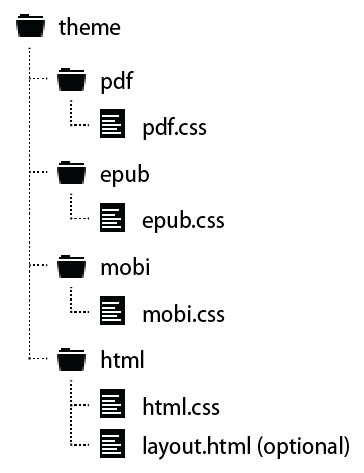
Figure 7-2. File structure for theme overrides within a single project.
All of these files are optional--you only need to include them if you want to add custom styles or overrides for each format. You can also add a custom layout.html file just for your project, if you’re exporting it for the Web. Read about HTML layout files above (see “The HTML layout file”).
Advanced Styling for HTML Output
The HTML format offers more opportunity for interaction and styling over PDF and other ebook formats. When building for HTML output, you may specify other stylesheets in the atlas.json file as well as custom javascripts to be included in the head of every page. More documentation these settings can be found in the ???.