Next we’ll embark on a quick tour of Java 2D, including working with shapes and text. We’ll finish with an example of Java 2D in action.
The simplest path through the rendering pipeline is
filling shapes. For example, the following code creates an ellipse and
fills it with a solid color. (This code would live inside a paint() method somewhere. We’ll present a
complete, ready-to-run example a little later.)
Shapec=newEllipse2D.Float(50,25,150,150);// x,y,width,heightg2.setPaint(Color.blue);g2.fill(c);
Here, g2 is our Graphics2D object. The Ellipse2D shape class is abstract, but is
implemented by concrete inner subclasses called Float and Double that work with float or double
precision, respectively. The Rectangle2D class, similarly, has concrete
subclasses Rectangle2D.Float and
Rectangle2D.Double.
In the call to setPaint(), we tell
Graphics2D to use a solid color,
blue, for all subsequent filling operations. Next, the call to
fill() tells Graphics2D to fill the given shape.
All geometric shapes in the 2D API are represented by
implementations of the java.awt.geom.Shape interface. This interface
defines methods that are common to all shapes, like returning a
rectangle bounding box or testing if a point is inside the shape. The
java.awt.geom package is a
smorgasbord of useful shape classes, including Rectangle2D, RoundRectangle2D (a rectangle with rounded
corners), Arc2D, Ellipse2D, and others. In addition, a few more
basic classes in java.awt are Shapes: Rectangle, Polygon, and Area.
Drawing a shape’s outline is only a little bit more complicated. Consider the following example:
Shaper=newRectangle2D.Float(100,75,100,100);g2.setStroke(newBasicStroke(4));g2.setPaint(Color.yellow);g2.draw(r);
Here, we tell Graphics2D to use
a stroke that is four units wide and a solid color, yellow, for filling
the stroke. When we call draw(), Graphics2D uses the stroke to create a new
shape, the outline, from the given rectangle. The outline shape is then
filled just as before; this effectively draws the rectangle’s outline.
The rectangle itself is not filled.
Graphics2D includes
quite a few convenience methods for drawing and filling common shapes;
these methods are actually inherited from the Graphics class. Table 20-1 summarizes these methods. It’s a
little easier to call fillRect() rather than
instantiating a rectangle shape and passing it to fill().
Table 20-1. Shape-drawing methods in the graphics class
Method | Description |
|---|---|
Draws a highlighted, 3D rectangle | |
Draws an arc | |
Draws a line | |
Draws an oval | |
Draws a polygon, closing it by connecting the endpoints | |
Draws a line connecting a series of points, without closing it | |
Draws a rectangle | |
Draws a rounded-corner rectangle | |
| Draws a filled, highlighted, 3D rectangle |
Draws a filled arc | |
Draws a filled oval | |
Draws a filled polygon | |
Draws a filled rectangle | |
Draws a filled, rounded-corner rectangle |
As you can see, for each of the fill() methods in the table, there is a
corresponding draw() method that
renders the shape as an unfilled line drawing. With the exception of
fillArc() and fillPolygon(), each method takes a simple
x, y specification for the top-left corner of the
shape and a width and height for its size.
The most flexible convenience method draws a polygon, which is
specified by two arrays that contain the x and y
coordinates of the vertices. Methods in the Graphics class take two such arrays and draw
the polygon’s outline or fill the polygon.
The methods listed in Table 20-1
are shortcuts for more general methods in Graphics2D. The more general procedure is to
first create a java.awt.geom.Shape
object and then pass it to the draw()
or fill() method of Graphics2D. For example, you could create a
Polygon object from coordinate
arrays. Since a Polygon implements
the Shape interface, you can pass it
to Graphics2D’s general draw() or fill() method.
The fillArc() method requires
six integer arguments. The first four specify the bounding box for an
oval—just like the fillOval() method.
The final two arguments specify what portion of the oval we want to
draw, as a starting angular position and an offset, both of which are
specified in degrees. The zero-degree mark is at three o’clock; a
positive angle is clockwise. For example, to draw the right half of a
circle, you might call:
g.fillArc(0,0,radius*2,radius*2,-90,180);
draw3DRect() automatically
chooses shading colors by “darkening” the current color. So you should
set the color to something other than black, which is the default (maybe
gray or white); if you don’t, you’ll just get a black rectangle with a
thick outline.
Like drawing a shape’s outline, drawing text is just a
simple variation on filling a shape. When you ask Graphics2D to draw text, it determines the
shapes that need to be drawn and fills them. The shapes that represent
characters are called glyphs. A font is a collection of
glyphs. Here’s an example of drawing text:
g2.setFont(newFont("Times New Roman",Font.PLAIN,64));g2.setPaint(Color.red);g2.drawString("Hello, 2D!",50,150);
When we call drawString(),
Graphics2D uses the current font to
retrieve the glyphs that correspond to the characters in the string.
Then the glyphs (which are really just Shapes) are filled using the current Paint.
Images are treated a little differently than shapes. In
particular, the current Paint is not
used to render an image because the image contains its own color
information for each pixel (it is the paint,
effectively). The following example loads an image from a file and
displays it:
Imagei=Toolkit.getDefaultToolkit().getImage("camel.gif");g2.drawImage(i,75,50,this);
In this case, the call to drawImage() tells Graphics2D to place the image at the given
location. We’ll explain the fourth argument, which is used for
monitoring image loading later.
Four parts of the pipeline affect every graphics
operation. In particular, all rendering is subject to being
transformed, composited, and clipped. Rendering hints are used to
affect all of Graphics2D’s
rendering.
This example shows how to modify the current transformation with a translation and a rotation:
g2.translate(50,0);g2.rotate(Math.PI/6);
Every graphics primitive drawn by g2 will now have this transformation applied
to it (a shift of 50 units right and a rotation of 30 degrees
clockwise). We can have a similarly global effect on
compositing:
AlphaCompositeac=AlphaComposite.getInstance(AlphaComposite.SRC_OVER,(float).5);g2.setComposite(ac);
Now, every graphics primitive we draw will be half transparent; we’ll explain more about this later.
All drawing operations are clipped by the current clipping
shape, which is any object implementing the Shape interface. In
the following example, the clipping shape is set to an ellipse:
Shapee=newEllipse2D.Float(50,25,250,150);g2.clip(e);
You can obtain the current clipping shape using getClip(); this is
handy if you want to restore it later using the setClip()
method.
Finally, the rendering hints influence all drawing operations.
In the following example, we tell Graphics2D to use anti-aliasing, a technique
that smoothes out the rough pixel edges of shapes and text:
g2.setRenderingHint(RenderingHints.KEY_ANTIALIASING,RenderingHints.VALUE_ANTIALIAS_ON);
The RenderingHints class
contains other keys and values that represent other rendering hints.
If you really like to fiddle with knobs and dials, this is a good
class to check out.
Let’s put everything together now, just to show how graphics
primitives travel through the rendering pipeline. The following example
demonstrates the use of Graphics2D
from the beginning to the end of the rendering pipeline. With very few
lines of code, we are able to draw some pretty complicated stuff (see
Figure 20-2).
Here’s the code:
//file: Iguana.javaimportjava.awt.*;importjava.awt.event.*;importjava.awt.geom.*;importjavax.swing.*;publicclassIguanaextendsJComponent{privateImageimage;privateinttheta;publicIguana(){image=Toolkit.getDefaultToolkit().getImage("Piazza di Spagna.small.jpg");theta=0;addMouseListener(newMouseAdapter(){publicvoidmousePressed(MouseEventme){theta=(theta+15)%360;repaint();}});}publicvoidpaint(Graphicsg){Graphics2Dg2=(Graphics2D)g;g2.setRenderingHint(RenderingHints.KEY_ANTIALIASING,RenderingHints.VALUE_ANTIALIAS_ON);intcx=getSize().width/2;intcy=getSize().height/2;g2.translate(cx,cy);g2.rotate(theta*Math.PI/180);ShapeoldClip=g2.getClip();Shapee=newEllipse2D.Float(-cx,-cy,cx*2,cy*2);g2.clip(e);Shapec=newEllipse2D.Float(-cx,-cy,cx*3/4,cy*2);g2.setPaint(newGradientPaint(40,40,Color.blue,60,50,Color.white,true));g2.fill(c);g2.setPaint(Color.yellow);g2.fillOval(cx/4,0,cx,cy);g2.setClip(oldClip);g2.setFont(newFont("Times New Roman",Font.PLAIN,64));g2.setPaint(newGradientPaint(-cx,0,Color.red,cx,0,Color.black,false));g2.drawString("Hello, 2D!",-cx*3/4,cy/4);AlphaCompositeac=AlphaComposite.getInstance(AlphaComposite.SRC_OVER,(float).75);g2.setComposite(ac);Shaper=newRoundRectangle2D.Float(0,-cy*3/4,cx*3/4,cy*3/4,20,20);g2.setStroke(newBasicStroke(4));g2.setPaint(Color.magenta);g2.fill(r);g2.setPaint(Color.green);g2.draw(r);g2.drawImage(image,-cx/2,-cy/2,this);}publicstaticvoidmain(String[]args){JFrameframe=newJFrame("Iguana");frame.setLayout(newBorderLayout());frame.add(newIguana(),BorderLayout.CENTER);frame.setSize(300,300);frame.setDefaultCloseOperation(JFrame.EXIT_ON_CLOSE);frame.setVisible(true);}}
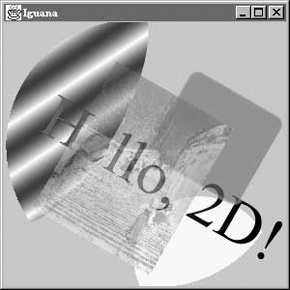
The Iguana class is a subclass
of JComponent with a very fancy
paint() method. The main() method takes care of creating a
JFrame that holds the Iguana component.
Iguana’s constructor loads a
small image (we’ll talk more about this later) and sets up a mouse event
handler. This handler changes a member variable, theta, and repaints the component. Each time
you click, the entire drawing is rotated by 15 degrees.
Iguana’s paint() method does some pretty interesting
stuff, but none of it is very difficult. First, user space is
transformed so that the origin is at the center of the component. The
user space is then rotated by theta:
g2.translate(cx,cy);g2.rotate(theta*Math.PI/180);
Iguana saves the current
(default) clipping shape before setting it to a large ellipse. Then,
Iguana draws two filled ellipses. The
first is drawn by instantiating an Ellipse2D and filling it; the second is drawn
using the fillOval() convenience
method. (We’ll talk about the color gradient in the first ellipse in the
next section.) As you can see in Figure 20-2, both ellipses are clipped by the
elliptical clipping shape. After filling the two ellipses, Iguana restores the old clipping shape.
Next, Iguana draws some text
(see the section Using Fonts). The next
action is to modify the compositing rule as follows:
AlphaCompositeac=AlphaComposite.getInstance(AlphaComposite.SRC_OVER,(float).75);g2.setComposite(ac);
The only thing this means is that we want everything to be drawn
with transparency. The AlphaComposite class
defines constants that represent different compositing rules, much the
way the Color class contains
constants that represent different predefined colors. In this case,
we’re asking for the source over destination rule
(SRC_OVER), but with an additional
alpha multiplier of 0.75. Source over destination means that whatever
we’re drawing (the source) should be placed on top of whatever’s already
there (the destination). The alpha multiplier means that everything we
draw will be treated at 0.75, or three quarters, of its normal opacity,
allowing the existing drawing to “show through.”
You can see the effect of the new compositing rule in the rounded rectangle and the image, which both allow previously drawn elements to show through.