
Hue Web Addresses
A hue resource web address for the V2 API will typically start with the following.
https://<bridge IP address>/clip/v2
This is the RESTful root and is how your app or controller talks to the Hue Bridge interface.
Hue Application Key
In most of the commands (the exceptions are creating a key and getting basic bridge information) you’ll include a hue-application-key in the header:
GET /clip/v2 HTTP/2
Host: <bridge IP address>:443
hue-application-key: <appkey>
This application key determines which resources you have access to. If you provide an application key that isn’t known to the bridge then most resources won’t be available to you. Using one that is authorized, as shown in the getting started section, will allow you to interact with pretty much everything interesting.
Each new instance of an app should use a unique application key which you generate using the Create New User command.
Resources
There are many different kinds of resources to interact with. The top 3 most used ones are:
/resource/device resource which contains all devices connected to the bridge (and the bridge itself)
/resource/light resource which contains all light services
/resource/room resource which contains all rooms
The list of all resources is available in the API reference.
You can query resources available in your bridge by doing a GET on its local URL. For example the following returns all devices in your bridge.
| Address | https://<bridge IP address>/clip/v2/resource/device |
| Method | GET |
| Header | hue-application-key: <appkey> |
Change a Resource
The principle for changing a resource is to send a PUT request to the URL of that specific resource. The desired new value is attached to the request in the Message Body in JSON format.
For example to change the name of a device we address the device resource by its id (/resource/device/<id>) and send the new name with the request in the message body.
| Address | https://<bridge IP address>/clip/v2/device/<id> |
| Method | PUT |
| Header | hue-application-key: <appkey> |
| Body | {"metadata": {"name": "developer lamp"}} |
If you’re doing something that isn’t allowed, maybe setting a value out of range or typo in the resource name, then you’ll get a 4xx HTTP status code and an error message letting you know what’s wrong.
Service references
Each device in the Hue System typically offers a set of services. For example a light service, a connectivity service, or a motion sensing services. Each of these services have their own resource which will be referenced via the resource type rtype and resource id rid. This way you can link to those services to read or modify their state. For example, to address the light service of the example device below, the path would be /resource/light/c6b028c8-076e-4817-92b1-bcb0cbb78783
{
    "type": "device",
    "id": "7b839dff-c2d2-4f90-9509-fea4b461b30d",
    "metadata": {
        "archetype": "sultan_bulb",
        "name": "User given name"
    },
    "product_data": {
        "manufacturer_name": "Signify Netherlands B.V.",
        "model_id": "XXX001",
        "product_name": "Fixed product name",
        "software_version": "x.y.z"
    },
    "services": [
        {
            "rid": "c6b028c8-076e-4817-92b1-bcb0cbb78783",
            "rtype": "light"
        },
        {
            "rid": "6ec5432f-fb66-4b07-88de-bb0087a0e33d",
            "rtype": "zigbee_connectivity"
        }
    ]
}
Controlling Light
There are multiple light features that can be controlled with Hue. These features are in sub-objects of the light service. Let’s go through them and explain.
The Easy Ones
on – This is the easiest example. A light can be on or off. So setting this value to true turns a light on to its last setting {"on": {"on": true}}. Setting the value to false turns the light off.
dimming – This is about controlling brightness of a light. We use the brightness in % (note minimum brightness is not off). The range has been calibrated so there are perceptually similar steps in brightness over the range. You can set the “brightness” key in the “dimming” object to a specific value, e.g. the following command sets the light to 50% of its maximum brightness.
| Address | https://<bridge IP address>/clip/v2/resource/light/<id> |
| Method | PUT |
| Header | hue-application-key: <appkey> |
| Body | {"dimming": {"brightness": 50}} |
Colors Get More Complicated
The color point of light has lots of ways of being quantified. The diagram below shows a plot of what is known as the CIE color space – the 3 triangles outline the colors which Hue can address.
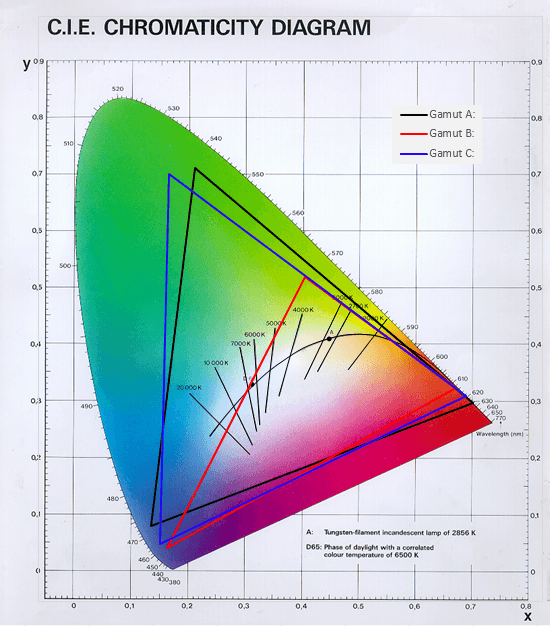
All points on this plot have unique xy coordinates that can be used when setting the color of a Hue bulb. If an xy value outside of bulbs relevant Gamut triangle is chosen, it will produce the closest color it can make. To control lights with xy use the “xy” sub-object within the “color” object which takes an x and y values between 0 and 1 e.g. {"color": {"xy": {"x":0.675, "y":0.322}}} is red.
We can also choose to address the color point of light in a different way, using colors on the black curved line in the center of the diagram. This is the line that follows white colors from a warm white to a cold white. Hue supports color temperatures from 2000K (warm) to 6500K (cold) with high quality white light. To set the light to a white value you need to interact with the “color_temperature” object, which takes values in a scale called “reciprocal megakelvin” or “mirek”. Using this scale, the warmest color 2000K is 500 mirek {"color_temperature": {"mirek": 500}} and the coldest color 6500K is 153 mirek. As with xy, the light will go to the closest value it can produce if the specified color temperature is outside of the achievable range.
An important note is that availability of the feature objects depends on device capabilities. So for example a light that has no color capabilities, will not have the color feature object.
Representations
The Hue system is built on the principle of representations. Each object in the Hue system has a corresponding resource in the Hue interface (a representation of the real object). You interact directly with these representations and afterwards the necessary Zigbee commands are sent out to lights to effect the change.
This lets us do things fast without worrying about the wireless messages bouncing between the lights, but it can mean that things are temporarily inconsistent. By this we mean the state of the lights and the state of their representation are not the same for a short period. It corrects itself after a while, but for example if you set all your lights to red and then power cycle a light so that it goes to white, it could take a few minutes for the bridge to update its representation.
Rooms
A user can have a lot of devices in their home. To organize them, we typically list devices per room, as each device can only be part of one room. By now it will probably be clear that retrieving the list of rooms can be done by a GET on /resource/room. This shows the id and name of each room, with the array of “children” referring to the devices in the room. Referencing the devices uses the same universal method as we’ve seen before with services i.e. using “rid” and “rtype”. As you can see in the example below the room itself also offers a “grouped_light” service. This can be used to control the lights as a group, in a similar way as controlling an individual light.
Example representation of a room:
{
    "type": "room",
    "id": "708d8a89-5d05-408f-b43c-830fbff8316e",
    "metadata": {
        "archetype": "living_room",
        "name": "Living room"
    },
    "children": [
        {
            "rid": "a91cde76-1d98-400c-873d-12f241f26145",
            "rtype": "device"
        },
        {
            "rid": "25f1f7e4-e409-4b64-a1d7-8186916de2d6",
            "rtype": "device"
        }
    ],
    "services": [
        {
            "rid": "27a6cc29-57e3-4e3e-b83d-f9cc33cc9629",
            "rtype": "grouped_light"
        }
    ]
}
Limitations
With these commands you can control any number of your lights in any way you want, just address the correct light resource and send it the command you want.
We have some limitations to bear in mind:
We can’t send commands to the lights too fast. If you stick to around 10 commands per second to the /light resource as maximum you should be fine. For /grouped_light commands you should keep to a maximum of 1 per second. The REST API should not be used to send a continuous stream of fast light updates for an extended period of time, for that use case you should use the dedicated Hue Entertainment Streaming API.
If you try and control multiple conflicting parameters at once e.g. {"color": {"xy": {"x":0.5,"y":0.5}}, "color_temperature": {"mirek": 250}} the lights can only physically do one, for this we apply the rule that xy beats ct. Simple.
All your lights have to be in range of the bridge. If you can control them from the Hue app then you’re fine to play with them via the API. Remember all lights act as a signal repeater so if you want more range put a light in between.
Events
As we have seen, you need to use a GET request to retrieve the state of resources when you first connect to the Hue Bridge. However, while you are connected, other applications and control methods can modify the state of those resources as well. It is important to not try to stay up to date by performing repeated GET requests, as that is bad for the performance of the system and generally gives a laggy user experience. Instead, you can subscribe to retrieving proactive event notifications immediately when something changes. This can be done by leveraging ‘Server-Sent Events’ (SSE) under the /eventstream endpoint:
curl --insecure -N -H 'hue-application-key: <appkey>' -H 'Accept: text/event-stream' https://<ipaddress>/eventstream/clip/v2
Events have an id, timestamp, type (‘update’, ‘add’, ‘delete’, ‘error’), and data field which contains the changed properties of the resource in the same format as a GET response on the same resource type, but with all properties optional as each event only includes the properties that changed. The following is an example event stream that would result from turning a light on and off:
id: 1634576695:0
data: [{"creationtime":"2021-10-18T17:04:55Z","data":[{"id":"e706416a-8c92-46ef-8589-3453f3235b13","on":{"on":true},"owner":{"rid":"3f4ac4e9-d67a-4dbd-8a16-5ea7e373f281","rtype":"device"},"type":"light"}],"id":"9de116fc-5fd2-4b74-8414-0f30cb2cbe04","type":"update"}]
id: 1634576699:0
data: [{"creationtime":"2021-10-18T17:04:59Z","data":[{"id":"e706416a-8c92-46ef-8589-3453f3235b13","on":{"on":false},"owner":{"rid":"3f4ac4e9-d67a-4dbd-8a16-5ea7e373f281","rtype":"device"},"type":"light"}],"id":"5ebb24e4-0563-43e2-8e8e-c10fc4f0095f","type":"update"}]
On HTTP1.1, you will need a separate connection for the SSE request and regular requests, but we recommend using HTTP2 to multiplex them over a single connection which is more resource efficient.
There is a 1 second rate limit on the amount of event containers the Bridge will send. If the same property has changed twice within that timeframe, you only get the last state. If multiple resources have changed within that timeframe, then you will get multiple events grouped in a single container.
More
There’s a lot more to the Hue System, for example:
- Zones are a way of grouping just like rooms, but they group services rather than devices, and have no restrictions i.e. services can be part of multiple zones
- Scenes are a way of creating preset light settings for all lights within a room or zone, which can then be easily recalled later
- Sensor services like “motion”, “light_level” and “temperature” can indicate information about the environment
- Button service can be used to receive an event when a user presses a button on one of our button/switch devices
- Entertainment configurations enable fast changing position based light effects for Hue Entertainment use cases
- Behaviors are used to create and configure automations in the Hue System, however this is under development and at this moment you can only list behaviors
They all follow many of the same core concepts you have just learned about, so have fun exploring our full API Reference!