Chapter 2. Quick Start Guide
Welcome to the Atlas Beta! Here are the most important things you need to know to get started.
Your Projects
When you sign into Atlas for the first time, you start off with a clean slate. The first thing you’ll want to do is create a new project by clicking the “New Project” button, or import an existing project from GitHub by clicking “Import from GitHub.”
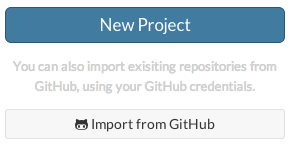
Figure 2-1. Click the New Project or Import from GitHub buttons to start writing.
Creating a New Project
When you click the blue “New Project” button, you’ll get taken to a page where you can define the title and description for your project, and choose a project template to pre-populate your new repository with some skeleton files based on the kind of project you’re making. Learn more about project templates here.
Click “Create!”, and Atlas will add a new repository to your Atlas account, pre-populated with skeleton files based on the project template you chose.
Importing from GitHub
If you have an existing project in GitHub that you want to import into Atlas, you can use the “Import from GitHub” tool. Click this button, authorize Atlas to access your GitHub account, and then you’ll see a list of your existing GitHub projects.

Figure 2-2. Before you can import a project from GitHub, you need to allow Atlas to access your GitHub account.
Click the “Import” button to the right of the project you want to add to Atlas. Atlas will let you know if it was able to successfully import your files, and will give you a link to get started writing and building.

Figure 2-3. Once a project is successfully imported, click the link to start editing.
Once you have some projects in Atlas, every time you sign in, you’ll see all your existing or imported projects listed here on the Projects page.
Select a project from the list and you’ll be taken to the project dashboard, where you’ll see a list of all files in the project, and have access to the “Building”.
A Warning About Split Source
When you import a project from GitHub into Atlas, you are essentially creating a copy of the files, that you will be maintaining separately from the files in GitHub. If you want to keep both sets of files up to date, you’ll need to add your repositories as a remote on a local checkout. ???.
The Project Dashboard
The project dashboard is your landing page for each project. It lists all the files and folders in your repo, and lets you manage collaborators, define settings for the different output formats, view past builds and trigger new builds (more on building “Building”).

Figure 2-4. Click a heading to open up the different tabs on your project dashboard. Dashboard shows you all your files and folders and create new builds; Access is where you manage collaborators or access the ???; Builds is where you can see all the details for your past builds; and Settings is where you define how your builds should look for each format.
From the project dashboard, your next steps will likely be either to start writing or to build your project. Click a file in your Files pane at left to open it in the editor. For more about building, “Building”.
Writing and Editing
The Atlas editor has “Editing Environments”: the Visual Editor and the Code Editor. The Visual Editor is an online authoring environment similar to a word processor, with a formatting toolbar for tagging and styling your content. Documents created in the Visual Editor are stored as HTML5. The Code Editor allows you to view and edit the underlying HTML5 markup for your document. You can toggle back and forth between the Visual and Code Editors, and changes you make in either mode will immediately be reflected in the other.
While HTML5 is the default markup language for Atlas content, Atlas also supports documents written in Chapter 10, AsciiDoc, and DocBook XML. All three of these formats can be edited using the Code Editor.
In both writing modes, you can navigate among your files using the Files menu to the left of the screen, create and delete files and folders, “Adding Images”, save your project (top-right button in the editor, or use the keyboard shortcut ⌘-s/Ctrl+s) and even attach a custom commit message to each save (hover over the Save button to open the commit message dialog box).
Creating a New File
You can create new files and folders right from the project dashboard: scroll to the bottom of your file listing, and you’ll see buttons for creating either a new file or folder. You can also create new files and folders from within the editor: open the Files menu, and click the New File button at bottom left. Give your file a name, and hit Enter.
You can also organize your files into folders. To add a folder, click the New Folder button (next to the New File button). You can then click the folder name in the Files menu to open the folder and create new files within it.
Warning
You can’t currently organize your files within Atlas. If you want to move existing files into a folder, you need to do that outside of Atlas using ???.
Building
When you’re finished writing, it’s time to build your project so you can share it with the world. Atlas lets you export your project in “Output Formats”: “PDF”, “EPUB”, “MOBI”, and “HTML”.
The first time you build, you’ll need to choose what formats to build, and what files and settings you want to apply to each format. You’ll do this on the Settings tab of the project dashboard.
Every format has Chapter 6 you can choose. Two options that are common for all formats are:
- Create a table of contents in your built project, based on your section headings. “Table of Contents”.
- Collect all index tags you’ve added and create an alphabetical index in your built project. “Index”.
Choose a theme for your project (more on that next). Then at the bottom of the Build Settings page, choose which files to add to the build, drag the files into the correct order, and then save your settings. Then hop back to the Dashboard, and start your build. If the build is successful, you’ll get a link to download the file. If it fails, you’ll get information about what went wrong (the usual culprit is markup errors).
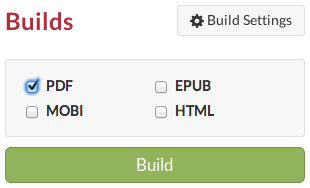
Figure 2-5. The Builds menu on the project dashboard allows you to quickly trigger a build using your previously defined settings.
Themes and Design
All of the Atlas output formats (PDF, EPUB, MOBI, and HTML) are powered by CSS, the standard styling language for the Web. You can write “Themes”, that can be used for multiple projects, by multiple people, or you can just add “Customizing Your Project Styles” for your specific project.
To apply a theme to your project, choose one of the default themes on the Build Settings page, or add a link to your own custom theme.
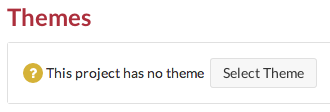
Figure 2-6. Add a design to your project on the Build Settings page.
Building Locally with the API
Atlas gives you the option to build locally on the command line, Chapter 9. (Note that you’ll still need an internet connection for this to work.) This is great if you prefer to work locally using your own text editor but still want to see the final output.
Finding Help
For more details on any of the above topics, or for more advanced information, check out the Atlas documentation. If you’re stuck, have specific questions about the app, or just general ideas for improvement, you can contact the Atlas team at atlas@oreilly.com.